To access an existing enrollment, see Login to UF e-Learning courses at the end of this guide.
For step-by-step enrollment instructions with screen shots, review either of these guides.
- Enrollment Guide for Sponsored Candidates – for candidates whose fees are fully covered by an institution, program, or exam site.
- Enrollment Guide for Self-Pay Candidates – for candidates who pay all or part of their fees.
Enroll in UF e-Learning Courses.
Candidate enrollment for Biotility courses and exams within UF e-Learning is managed through UF Professional and Workforce Development (UF PWD). At least one week before the course or testing event window, Biotility sends Enrollment Links directly to the Exam Site Cdministrator. The Site Cdministrator is responsible for distributing the Enrollment Links and Coupon Code to candidates.Candidate Enrollment
Tips for Candidate Enrollment and Account Creation
-
Create or Use an Accessible Account: If you don’t have a school or social account (e.g., Google, LinkedIn, Microsoft), create one that you can access from your Exam Site.
-
Choose the Right Account: Use an account registered under your legal name with correct spelling and capitalization. This should be the account connected to your true identity.
-
Consistency is Key: Use the same account for enrollment, account creation, and signing in to ensure seamless access to your course and exam materials.
-
One Enrollment per Course: Avoid attempting to enroll in the same course multiple times.
-
Plan for Long-Term Access: Choose an account you can access long-term. If using a school account, update your contact information with Biotility before you graduate to maintain access.
Candidate Enrollment
-
Select the Enrollment Link.
-
On the Biotility Course Enrollment page:
-
Review the Course Description.
-
Select the orange plus next to the course offering.
-
Select Add to Cart.
-
-
In the Cart View:
-
If the total is not zero, candidates registered through an Exam Site should select Apply Discount and enter their site-provided Coupon Code.
-
Select Checkout.
Account Creation or Confirmation
-
- Select the desired social account type and sign in (Google, LinkedIn, or Microsoft).
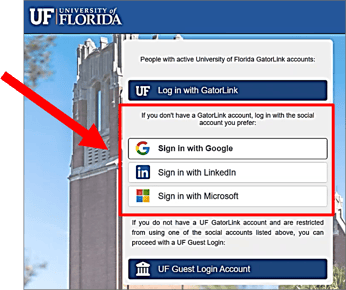
- New Users: Follow the prompts to search for an existing account. Enter the required information (name, date of birth, primary and secondary email, and phone number), and then select Submit.
- Existing Users: After signing in, you are advanced directly to the Payment page (Step 6).
Checkout Process
- On the My Profile page -
- Confirm or enter the required information.
- Accept UF's Privacy Policy by typing your initials
- Select Continue Checkout.
- On the Payment page -
- Confirm or enter the required information.
- Answer the Questionnaire.
- Read and accept the Payment Policy Confirmation.
- Select Continue Checkout.
- You are redirected to the Receipt page. A copy of your receipt and registration confirmation is sent to the email address on file. This page confirms that your enrollment in the course is complete. To enroll in additional courses or course sections, obtain a separate enrollment link for each and repeat the process
Troubleshooting
Not receiving our verification emails? Check your spam folder or update your email settings to allow emails from the following domains:
- @ufl.edu
- @cerhb.ufl.edu
- @research.ufl.edu
Log in to UF e-Learning Courses
To access courses you are enrolled in, follow the steps below:
- Navigate to the UF e-Learning sign-in page.
- Select External ID.
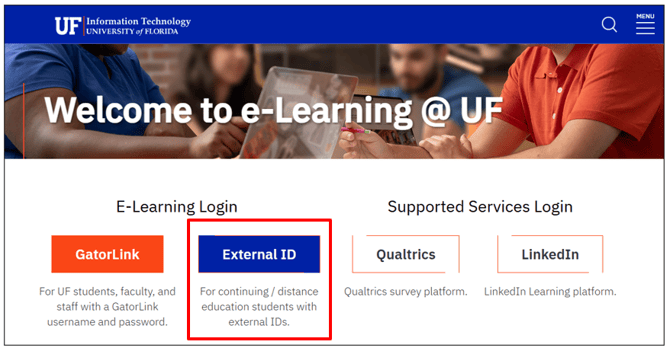
- Sign in with the same social account used during enrollment.
- Once in UF e-Learning, select eh appropriate course tile from your dashboard.
Note: Access to all exam content within UFEL is managed through enrollment links. Your Site Coordinator will distribute the enrollment link to you.
Navigate Within UF e-Learning Courses
Once you’ve accessed your course in UF e-Learning, you’ll find several key areas to help you stay organized and on track:
- Home: The "Home" page is your starting point. Here, you’ll see an overview of your course, including important announcements, upcoming assignments, and recent activity.
- Modules: The course content is organized into modules. Click on the "Modules" tab to access lessons, readings, quizzes, and assignments in a structured sequence.
- Quizzes: Use the "Quizzes" tab to access and complete quizzes related to your course material. Your scores will be available here after submission.
- Grades: Keep an eye on your performance by selecting the "Grades" tab, where you can view scores and feedback on your assignments and quizzes.
For more detailed instructions on navigating UF e-Learning, please refer to the Canvas Student Guide.
Biotility Technical Support
Biotility staff are available Monday-Friday 8:00 AM to 5:00PM ET. Exam Site Personnel, technical staff, and candidates are all welcome to contact us by phone or email.
Phone: 386.462.3181 Option #1
Email: BiotilityCS@research.ufl.edu
Last Updated: 08/21/2026