Educator Technical Guide
The BACE Practice Exam Course is a complimentary resource available through UF e-Learning to support candidate preparation for the Biotechnology Aptitude and Competency Exam (BACE). This guide is intended for educators and other authorized Exam Site personnel who use the course to support candidate preparation. It provides technical instructions for accessing and managing the course, obtaining Teaching Assistant (TA) access, managing course content, and viewing and interpreting candidate results.
For an overview of the six course modules and the preparation resources available to candidates, see the BACE Practice Exam Course article.
Practice Exam Results
Scores obtained from BACE practice activities are not validated for high-stakes decision-making. Results are intended to support instructional planning and help identify areas where candidates may benefit from additional preparation.
Course Access
Following Exam Site registration, the Exam Site receives a unique BACE Practice Exam Course Enrollment Link. Candidates and authorized Exam Site personnel use the same Exam Site enrollment link to access the course.
Do not post the enrollment link publicly. It may be emailed directly to authorized users or posted on a nonpublic class page or other restricted-access location.
For account creation and enrollment instructions, see Accessing UF e-Learning.
User Roles
Users initially enroll in the BACE Practice Exam Course with the Student role. Students can access course content, participate in activities, submit assignments, and complete quizzes. Educators who need access to candidate results and other student work must be assigned the Teaching Assistant (TA) role.
Request Teaching Assistant Access
- Enroll in the BACE Practice Exam Course using the Exam Site's enrollment link.
- The Site Coordinator requests TA access for the educator from Biotility.
- Biotility updates the user's course role after authorization.
An Exam Site may authorize multiple individuals for TA access.
Account and Data Security
Each individual must use their own UF e-Learning account. Usernames and passwords may not be shared. The Site Coordinator should notify Biotility when an individual no longer requires TA access, including when an educator or other authorized individual leaves the institution or changes responsibilities.
Managing Published Content
By default, course content is published and available to enrolled candidates. Users with TA access can hide an entire module or individual course content by unpublishing it.
Unpublish Content
- Locate the green check mark on the right side of the applicable module or item.
- Select the check mark to unpublish the content. Unpublished content is hidden from users with the Student role.
Republish Content
- Locate the unpublished symbol on the right side of the applicable module or item.
- Select the symbol to publish the content again.

Figure 1. Published and unpublished course content in UF e-Learning.
Viewing Candidate Results
Educators with TA access may review candidate results using the Gradebook or Quiz Statistics. These tools can help identify patterns in candidate performance and areas where additional instruction, practice, or review may be useful.
View Results in the Gradebook
The Gradebook provides a quick way to review results across candidates and course activities.
- Go to the UF e-Learning login page.
- Select Log In To Continuing Education.
- Open the BACE Practice Exam Course.
- From the course navigation menu, select Grades.

Figure 2. Gradebook view. The numbered callouts identify Gradebook controls and settings [1], student data [2], assignment data [3], and the Keyboard Shortcuts control [4].
For a complete walkthrough of Gradebook menus, filters, searches, viewing options, and settings, see the Canvas Instructor Guide.
View Quiz Statistics
Quiz Statistics provide more detailed information about candidate performance on a specific practice activity.
- Go to the UF e-Learning login page.
- Select Log In To Continuing Education.
- Open the BACE Practice Exam Course.
- From the course navigation menu, select Quizzes.
- Locate the applicable quiz, open the Options menu, and select Build.
- Select Reports.
- Under Quiz and Item Analysis, select Generate Report.

Figure 3. Open the quiz Options menu and select Build.

Figure 4. Select the Reports tab in the quiz Build area.
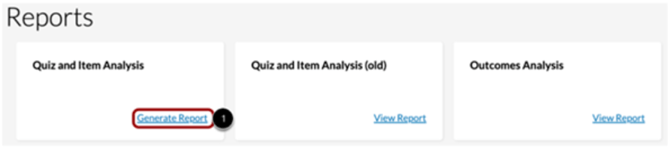
Figure 5. Under Quiz and Item Analysis, select Generate Report.
Quiz Statistics are not available until at least three candidates have completed the quiz.
Quiz Analysis Report
The Quiz Analysis Report provides summary statistics for candidate performance on a practice activity. Available information includes:
- High Score: highest percentage score.
- Low Score: lowest percentage score.
- Mean Score: average percentage score.
- Median Score: median percentage score.
- Mean Elapsed Time: average time to complete the quiz.
- Standard Deviation: amount of variation from the mean score, expressed as a percentage.
- Cronbach's Alpha: internal consistency measure that estimates the reliability of a quiz.
- Score Distribution Chart: distribution of earned scores for the quiz.
In the score distribution graph, the x-axis shows quiz score percentages and the y-axis shows the number of candidates receiving each percentage. If a candidate has multiple attempts, the quiz summary graph displays only the candidate's highest score.

Figure 6. Quiz Analysis summary statistics and score distribution.
Item Analysis Report
The Item Analysis Report provides statistics for individual quiz items and their relationship to overall quiz performance. Available information includes:
- Item Difficulty: proportion of candidates who answered the question correctly.
- Mean Earned Points: average point score out of the maximum possible points.
- Median Earned Points: median point score out of the maximum possible points.
- Discrimination Index: ability of an item to differentiate between higher-scoring and lower-scoring candidates.
- Corrected Item-Total Correlation Coefficient: correlation between performance on an individual item and the total quiz score.
- Answer Frequency Summary Chart: number and percentage of candidates selecting each answer choice. This chart appears only for questions with answer choices.

Figure 7. Item Analysis details and Answer Frequency Summary.
Using Practice Results
Practice results are intended to help educators identify areas where candidates may benefit from additional preparation. Use Gradebook and quiz-level information to look for patterns across content areas, activities, and candidates. Practice results should be interpreted as instructional information and should not be used as a high-stakes decision or as a prediction that a candidate will pass or fail the BACE.
Related Resources
Additional BACE educator resources include the BACE Content Guide, curriculum crosswalks and alignment materials, candidate preparation resources, supplementary learning materials, and professional development opportunities.
Last Updated: 09/17/2026